Sketch Constraints Browser
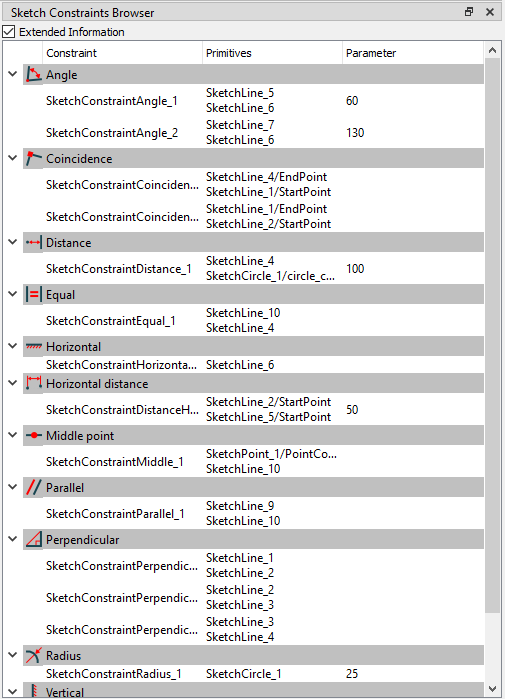
Sketch constraints browser
Extended Information check box - show/hide Primitives and Parameter columns
Right click on any constraint opens context menu:
Edit… - edit value of constraint’s numeric parameter, if it exists
Delete - delete constraints
Deactivate/Activate - (de)activate constraints
Edit
For constraints with a numeric parameter (Angle, Length, Radius e.t.c.), values can be changed in the following ways:
Select one/multiple constraint(s) -> right click -> Edit… -> hit Enter to apply;
Double click on a constraint value.
Limitations:
It is not possible to set negative values to all constraints with a numeric parameter
It is not possible to set zero value to “Length constraint”
Delete
Select one/multiple constraint(s) -> rightg click -> Delete.
Deactivate
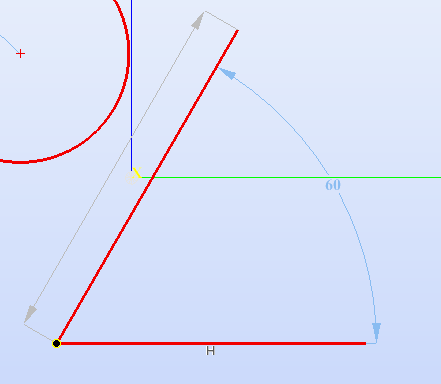
Suppressed constraints
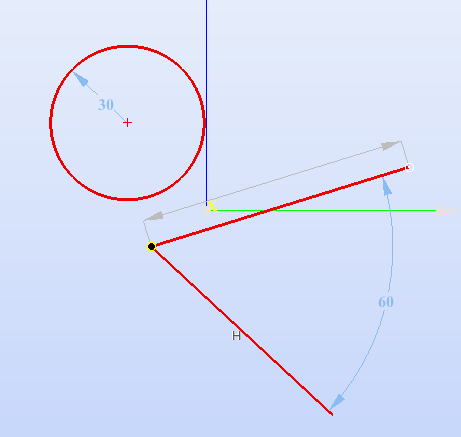
Suppressed constraints moved
Activates/deactivates applied constraints. Deactivating the constraint allows to examine and manipulate the sketch or shape as if the constraint wasn’t there.