Length constraint
Length constraint fixes the length of lines, such as standalone line or rectangle side.
To create a Length constraint in the active Sketch:
select in the Main Menu Sketch - > Length item or
click
 Length button in Sketch toolbar:
Property panel:
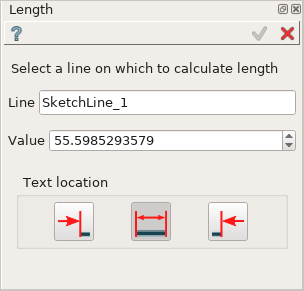
Input fields:
Line is the the line object selected in the view;
Value is a line length, can be modified to set the desirable value;
- Text location is a position of the length value label relating to extension line (in the view):
 Left inserts text to the left of the length extension line;
 Automatic inserts text in the middle of the length extension line if it has enough length, otherwise - to the left;
 Right inserts text to the right of the length extension line.
When the line is selected, the length value is displayed in the property panel and in the view.
When creating the constraint, after selection of a line for the first time:
drag the length presentation in the view to the desired position and click once;
set desirable length value in the input field in the view and press Enter or just press Enter to keep the current length.

Length input in the view
TUI Command:
- Sketch_1.setLength(LineObject, Value)
- Parameters:
object – A line.
real – Length value.
- Returns:
Result object.
Result
Created Length appears in the view.

Length created
See Also a sample TUI Script of Create Length constraint operation.