Rectangle
Rectangle feature creates a rectangle by two opposite points in the current Sketch.
The result is represented in form of four Lines which compose a rectangle. Two lines have Vertical constraint and two others have Horizontal constraint.
To add a new Rectangle to the Sketch:
select in the Main Menu Sketch - > Rectangle item or
click
 Rectangle button in Sketch toolbar:
There are 2 algorithms for creation of a Rectangle:

By start and end points creates a rectangle with the given two corners points.

By center and end point creates a rectangle with center and end point as corner.
By start and end points

Rectangle
Click in the view once to set the first corner, then move the mouse and click a second time to set the opposite corner. If an existing object is clicked, a constraint for the point will be created automatically.
Start and end points coordinates are displayed in the property panel.
TUI Command:
- Sketch_1.addRectangle(X1, Y1, X2, Y2)
- Parameters:
real – X1 corner X value.
real – Y1 corner Y value.
real – X2 opposite corner X value.
real – Y2 opposite corner Y value.
- Returns:
Result object.
By center and end point
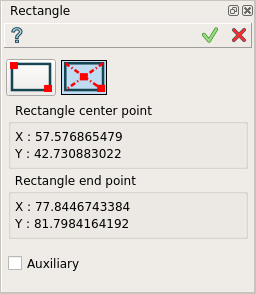
Rectangle
Click in the view once to set the center, then move the mouse and click a second time to set the corner. If an existing object is clicked, a constraint for the point will be created automatically.
Center and end points coordinates are displayed in the property panel.
TUI Command:
- Sketch_1.addRectangleCentered(X1, Y1, X2, Y2)
- Parameters:
real – X1 center X value.
real – Y1 center Y value.
real – X2 corner X value.
real – Y2 corner Y value.
- Returns:
Result object.
Result
Created rectangle appears in the view.
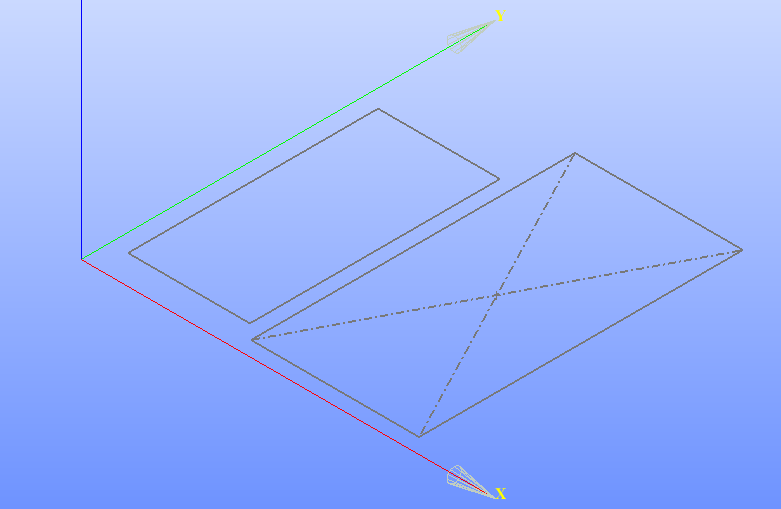
Rectangles created
See Also a sample TUI Script of Create Sketch Rectangle operation.