Bounding box
The Bounding box feature displays the bounding box of sub-elements of a geometrical object (shape).
The property panel displays the coordinates of inferior (Min) and superior (Max) points. the resulting bounding box can be created via a dedicated check-box Create Box. If this last is checked corresponding result and feature would be created.
If the check-box Create Box isn’t checked, Apply button does not generate any result and has the same effect as Cancel for this feature.
To display the bounding box in the active part:
select in the Main Menu Inspection - > Bounding box item or
click
 Bounding box button in the toolbar
Coordinates of the two points (inferior and superior) of the bounding box can be displayed for a selected object in the property panel :
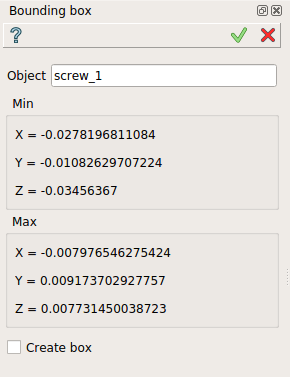
Bounding Box
Input fields:
Object contains object selected in 3D OCC viewer or object browser.
Create box check-box allow the creation of the bounding box (result and feature).
Note, the coordinates of two points displayed can be selected.
TUI Command:
- model.getBoundingBox(Part_doc, shape)
- Parameters:
part – The current part object.
object – A shape in format model.selection(“Type”, shape).
- Returns:
Created bounding box.
Result
Result of Bounding box where Create box is checked.
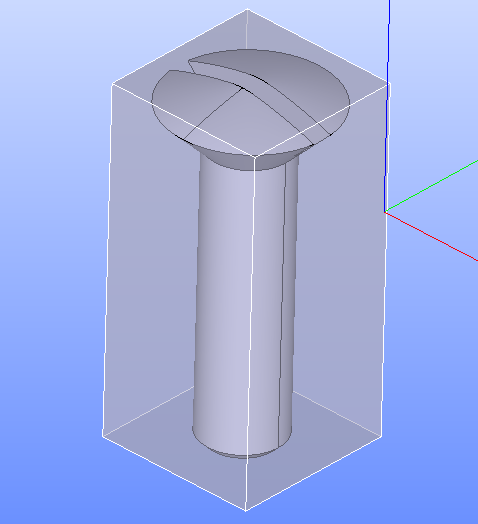
Object selected
See Also a sample TUI Script of Create bounding box operation.