Import Result
The Import Result feature allows the user to import one or several results from another Part. If the result of the source-part is changed, the part and part result that contains the copy-results will be updated. The feature keeps the copy-shape, so, even the document was opened and the source-part was not activated (loaded), the part with copy-feature works well with this result-shape.
If the source-part contains one or several groups, which refer to sub-shapes of source results, then these groups are mutually imported as a sub-features of the Import Result feature. The copied groups contain only the elements referring to the imported results.
It may be necessary for the user to load the other parts before using this feature otherwise the content of the Results folders will be empty.
To create a Copy in the active part:
select in the Main Menu Features - > Import Result item or
click
 Import Result button in the toolbar
The following property panel will be opened:
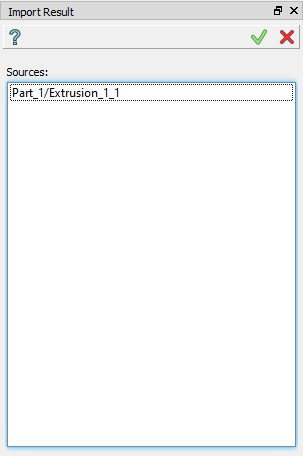
Import result operation
Here it is necessary to select one or several objects. It is only possible to import results from Parts placed before the current Part where the import is done. Only results from the Results folder of previously created parts may be selected.
Apply button creates a copy.
Cancel button cancels the operation.
TUI Command:
- model.addImportResult(Part_doc, results)
- Parameters:
part – The current part object.
results – A list of results from another part.
- Returns:
Result feature Import Result.
Result
The Result of the operation will be copy of one or several results selected and groups referring to these results in another part located in the same place:
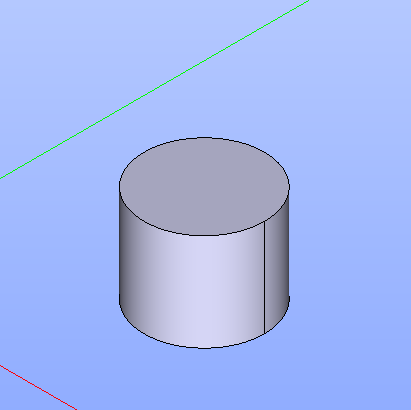
Import result created
See Also a sample TUI Script of Create Import Result operation.